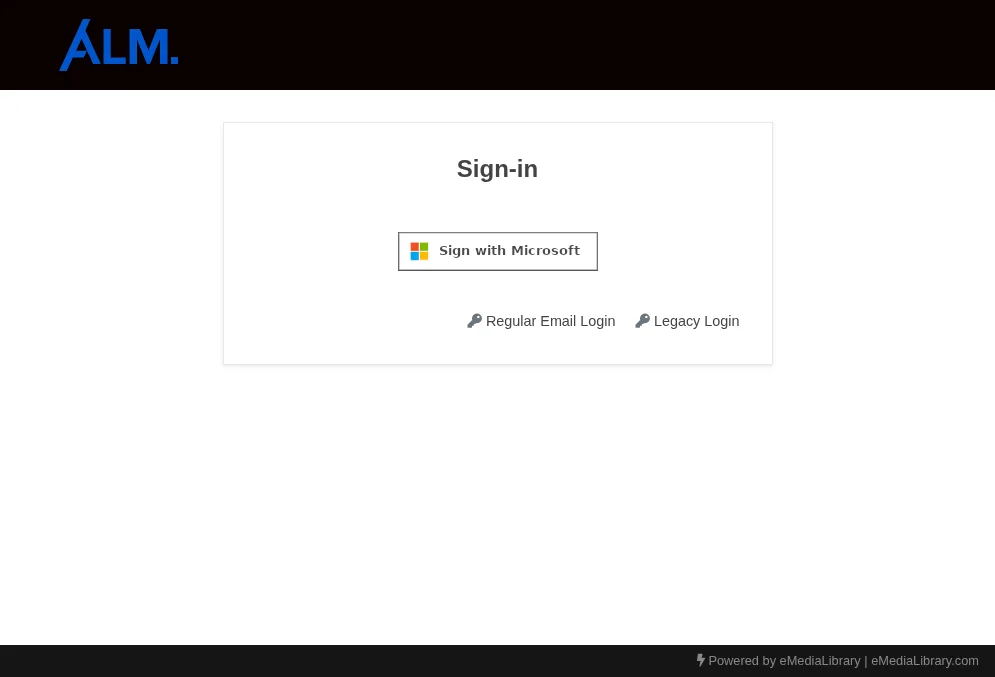
Microsoft Azure SSO
eMedia supports authentication using the Authorization Code Flow with the Microsoft identity platform via the token endpoint:
https://login.microsoftonline.com/common/oauth2/v2.0/tokenThis implementation uses:
grant_type=authorization_code → to authenticate users securely
refresh_token → to maintain user sessions without requiring repeated logins
eMedia supports both multi-tenant and single-tenant Microsoft OAuth configurations.
Multi-tenant (default)
https://login.microsoftonline.com/common/oauth2/v2.0/tokenSupports:
- Personal Microsoft accounts (Outlook, Hotmail)
Work/School accounts (Microsoft Entra ID)
Recommended for applications serving multiple organizations
Single-tenant (Tenant-specific)
https://login.microsoftonline.com/{tenant}/oauth2/v2.0/tokenReplace {tenant} with:
- Your Tenant ID (GUID), or
Your tenant domain (e.g., yourcompany.onmicrosoft.com)
Only allows users from your organization. Recommended for internal or enterprise-only applications
Configure Microsoft Entra Application
- Go to Microsoft Entra Admin Center.
Open: https://entra.microsoft.com. Sign in with your admin or developer account - Navigate to App Registrations In the left menu, click Applications, then select App registrations. Choose your existing app (or create one)
- Open Authentication Settings. Inside your app, click Authentication (left sidebar)
- 4. Add a Redirect URI
Under Platform configurations, click + Add a platform.
Choose the platform type: Web (for server-side apps) - Enter Your Redirect URI. In the Redirect URIs field, add your eMediaLibrary URL
https://yourdomain.com/finder/find/authentication/oauth/microsoftauth.html
**Use your own domain and catalog/application - Save Changes
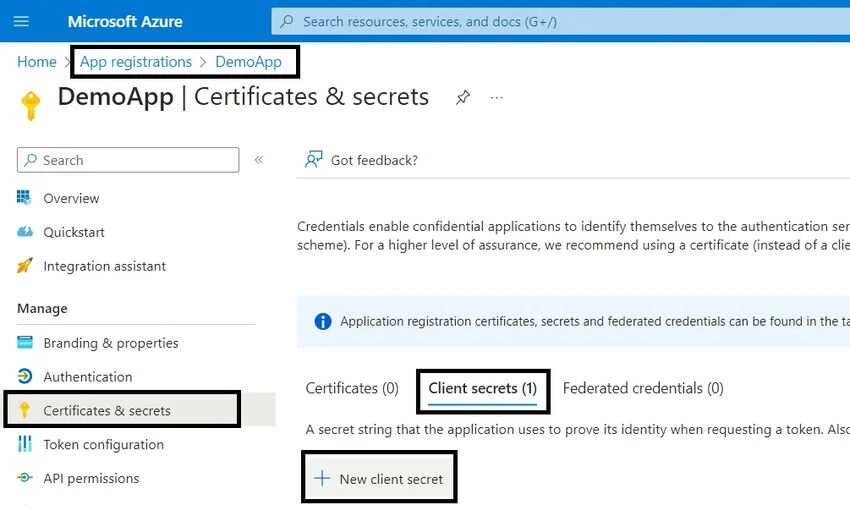
Create a Client Secret under Certificates and Secrets.
Setup Microsoft oAuth provider in eMedia Library
In your eMedia Library server edit or add a new record on oauthprovider table. Navigate to Settings, Database and select the table.
Microsoft oauth record should contain:
id: microsoft
name: Microsoft
Client id:   -- Client Id from azure App--
Client secret:  -- Client secret --
Redirect Url: /authentication/oauth/microsoftauth.html
Tenant Id:  --Tenant Id -- *Optional
Enabled: true
Save your oauthprovider record and you should be able to see the login with Microsoft option in the Login page.
Tenant